When it comes to enterprise and small-business storage solutions, it’s sometimes difficult to assess just how much of storage you need for your users. Building on that, you have to decide if you want offline or online storage, or a combination of both. Often the size of your data couple with the costs of storage can create an alarmingly large dent in a company’s IT budget, so it’s important that you pick something that can scale accordingly without costing an arm and a leg. A NAS is a perfect solution in this scenario, but again you’ve got so many options to choose from that it can be difficult trying to find a starting point. Luckily, Synology has put out the DS916+, which in our opinion is one of the most robust and scalable NAS solutions we’ve seen so far.
Build Quality & Design
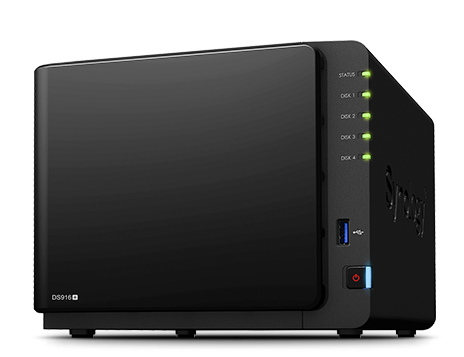
Most of Synology’s NAS look fairly ordinary, and the DS916+ follows suit. The mostly plastic exterior has a polished removable cover on the front which lets you access the four drive bays. There’s a USB 3.0 port on the front, along with LEDs status lights for each of the drives. Around the back you’ve got two more USB 3.0 ports, dual Gigabit Ethernet, and a Kensington slot. There’s also an eSATA port, but this is best reserved for Synology’s dedicated expansion bay.
You see, in the event that you are running low on storage on your DS916+, you can of course attempt to insert higher capacity drives into it and rebuild your storage array. Or, you could do something simpler and opt for the Synology DX513, which adds five additional drive bays to your DS916+. So with nine drive bays, in theory you could hit a maximum capacity of anywhere between 90 to 108 TB. That’s a whole lot of storage to play around with, and the super-fast eSATA interface ensures that there’s no slowdowns with data transfer.
Setup
The DS916+ comes in either a 2GB or 8GB RAM version, depending on your usage scenario. There’s a quad-core Intel Pentium N3710 processor running at 1.6GHz, which is quite adept at handling pretty much whatever you want to throw at it. The 8GB model is better suited (as Synology states) for companies who might have a higher number of concurrent users on resource-heavy applications such as Cloud Station, CIFS/AFP/FTP, and File Station connections. It’s also wise to grab the 8GB version if you’re looking to do a lot of media streaming in your environment, which I’ll elaborate upon later.
Drive installation for standard 3.5” HDDs is very easy – just pull out a drive bay, snap off the side supports, slide in a HDD, snap the side supports back on, and slide the tray back into the NAS. If you need to mount 2.5” drive, the DS916+ comes with a small pack of screws that lets you secure the drives to the drive bay.
I’ve yet to come across a Synology NAS that’s hard to set up, and the DS916+ was super easy to have up and running in less than ten minutes. Just unbox it, slot in your drives, connect it to your network, and power it on. For our testing, we equipped the DS916+ with two WD Red Pro 5TB drives, and one WD Blue 1TB SSD. The setup wizard talks you through most options and setting user permissions, before presenting you with options on how to setup your storage. We configured the two 5TB drives in a RAID1 array, with btrfs rather than ext4, simply because btrfs provides better options and supports more advanced features such as directory snapshots (which I’ll touch upon later). Adding SSDs to the disk configuration is purely optional – if you work in an environment where you want zero delays when accessing or writing data, then you can setup SSDs on the DS916+ to act as a read or write cache for your data. Installing one SSD such as in our setup will grant you only a reach cache, while two SSDs in tandem will grant you both read and write cache.
Performance
It goes without saying that you’ll need to ensure you’ve got the DS916+ connected to a Gigabit switch in order to really enjoy some top-level performance. We performed a number of read/write tests on the DS916+, using a variety of machines copying data to the NAS simultaneously to mimic real-world usage. When copying over files initial write speeds started at around 87MB/s, but peaked at about 119MB/s. Read speeds were significantly better, starting at around 110MB/s and peaking at 139MB/s. Copy data from an existing Synology NAS to the DS916+ saw speeds drop a bit to an average of 92MB/s. With these kind of speeds the DS916+ is more than capable of handling file requests across your network, whether you’re copying a multitude of files or just one large file back and forth.
Backup
Obviously one of the things you want to use a NAS for is for data backup, and the DS916+ has multiple ways to secure your data. Of course, setting up your HDDs in a proper RAID array is the first step, but beyond that Synology offers a number of tools to keep your data secure. The first is their own Cloud Station, which behaves very much like Dropbox does. Users can install the app on their machines, and it will automatically sync files back and forth onto the NAS. It’s perfect for companies who’d want the flexibility of multi-user syncing but want to keep the data on their own local servers.
A more customizable solution is the built in Hyper Backup software, which lets you backup data to a cloud service, another Synology NAS, or to another volume or attached external storage device. I set up the DS916+ as a backup to another Synology NAS on the network, so all I had to do was set up the right folder and user permissions, and the DS916+ appeared as a backup destination on the other Synology NAS. You can also use the Hyper Backup Vault application to view previous backups and logs, just to ensure that everything is being backed up properly. Mac users can also benefit from the DS916+, as it easily appears in Time Machine as a destination to backup your Mac to.
Snapshot Replication and High Availability
One of the best elements of the DS916+ is the ability to take snapshots. Snapshots drastically reduce the time it takes for IT admins to restore individual files or folders, and can be configured in a seemingly infinite number of ways. Snapshots can be taken daily, hourly, or even every five minutes – as long as you’ve got the storage to keep them. The beauty of snapshots is how easy it then becomes to restore data – all a user has to do in Windows if they accidentally delete a file from the NAS is just to right click and choose ‘Previous Versions’. They’ll then be able to browse past version of the same folder to locate and restore the file they deleted. This means less time for IT staff to intervene for small tasks such as these, and it also means not having to do a full data restore if you’re looking for just one particular file. Snapshots only work natively in Windows – for Mac users you have to navigate to a hidden path to view the backups and restore them accordingly.
To further secure your data, you can choose to replicate your snapshots to another server, which is essentially a backup of a backup of your backup. Confusing as this may sound, it’s a few clicks to get through in the application setup, and the DS916+ once again advises you if any issues crop up. You can replicate your snapshots to a maximum of three different servers, which makes remote backups an easy option as well.
If you’re operating in an environment where system downtime cannot be tolerated, then Synology offers a High Availability feature on the DS916+ that allows you to pair with another DS916+ to create a failover system. Once both systems are identically configured in terms of storage setup, they can be physically connected with a LAN cable to create a ‘heartbeat’ connection, and then be connected to the LAN. In the event of any storage problems or if the primary server goes offline, the secondary NAS automatically kicks in, and end users will never be able to tell the difference. It’s a perfect solution for larger businesses that need 24/7 uptime of their data, so it’s certainly worth setting up.
The DS916+ is also VMware compatible, which means that you can set up a iSCSI LUN on the DS916+ and then connect to it from VMware to set up your virtual machines. You can then of course use the Snapshot and Backup features to backup your VMs with your regularly scheduled backups, which makes everything much more centralized and efficient.
Media Streaming
Almost any Synology NAS is capable of media streaming in some form or the other. The DS916+ is no exception, with Synology boasting that it can transcode and stream 4K content without any issue. The only way I see that media streaming would work in an SME environment is if that’s the nature of your business. So for example if you’re an ad agency or something similar that does a lot of media work that you’d like to showcase in a meeting or client pitch, you can easily remotely connect to the DS916+ to stream media directly onto your device or web browser.
The 4K label does need to be taken a bit lightly, however. 4K content that you put on the DS916+ will be transcoded into 1080p and then streamed to your device, even if on the same network. The DS916+ natively supports Plex, so you can install and catalog any sort of media you’ve got on it. However I noticed that when streaming 4K content via Plex the buffering was a little bit longer than I’d expected. Using Synology’s own Video Station app to stream was a little bit better, although you forgo the meticulous cataloging that Plex provides. Again, media streaming is an option you have on the DS916+, but it’s going to be rarely used in an SME environment.
Honestly, the only fault I would say with the DS916+ is that physically it’s not a secure setup. Unless you’re investing in a server rack or cabinet that has a physical lock in which to store this in, the DS916+ is actually quite a vulnerable piece of kit. There’s nothing stopping someone from slyly popping open the front cover and grabbing one of the HDDs – I would have wished that Synology had a physical lock on the front cover (such as those seen on certain Thecus NAS models), which would certainly make for a more secure setup. The realities of an employee simply walking up to your NAS and grabbing a hard drive might be slim, but when it comes to your data it’s never a bad thing to be overly cautious.
The Synology DS916+ is a NAS that can most certainly cater to your SME storage needs. If you’re looking for a device that scales easily, offers fantastic backup options, and can be configured to provide near 100% uptime, then this is the unit for you. With support for services such as VMs, cloud backups, LDAP, VPN, email, and much more, there’s plenty that can be configured depending on your usage scenario. The DS916+ will set you back around AED 2,018 for the 2GB version and AED 2,206 for the 8GB version. It’s a sound investment to make, and one that you most certainly will not regret doing so for the sake of your data security.
- Powerful backup options
- Supports VMs
- Expandable
- No physical security for drives
- Expensive for RAM options
The Canon EOS Rebel T8i is a simple APS-C DSLR camera. It has an autofocus system that does an exceptional job during still photography.