One-minute review
In the midst of streaming, it can be distracting as well as cumbersome to have to try and adjust something in your stream. You may need to switch to another scene, adjust audio volume, run an ad, or do any other number of tasks. Devices such as the Elgato StreamDeck help to simplify this, by giving you one-button access to a majority of stream actions. But if the high price point of the StreamDeck has you holding back, then you may want to consider the Mountain DisplayPad instead. Similarly, if you want an extension of your keyboard for running complex macros at the touch of a button, then the MacroPad is definitely something to look into.
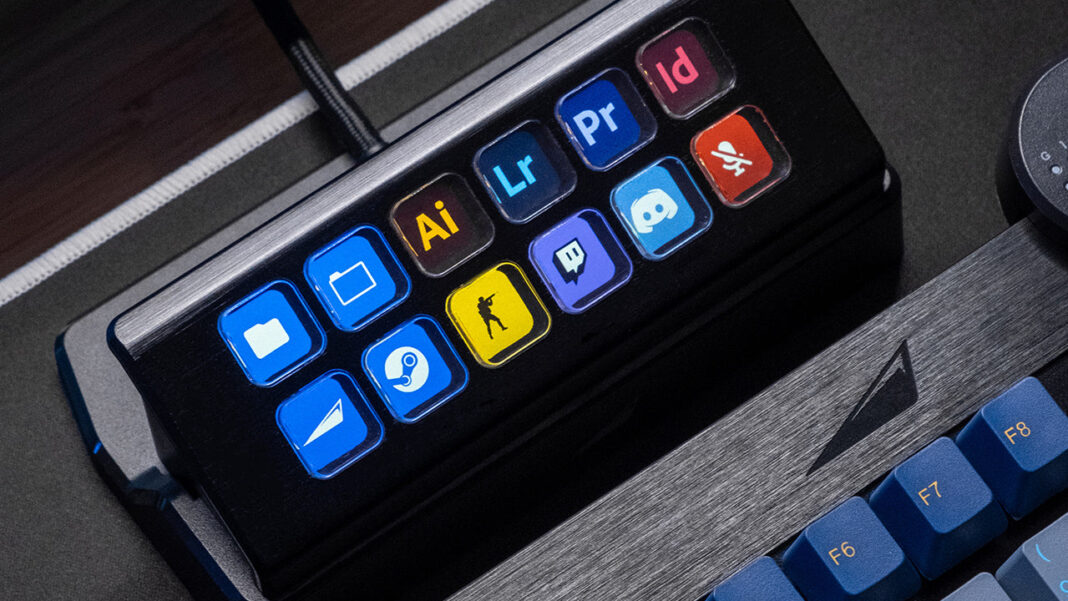
Following the same concept as the StreamDeck, you get a number of buttons that can easily be configured for a variety of stream tasks, as well as for various creative programs to assist with your workflows. From running programs to adjusting stream scenes on the fly, the DisplayPad has strong customization options that make it ideal for any streamer or content creator to have. The MacroPad is equally straightforward – twelve buttons let you assign pretty much anything to them, making it easy to simply workflows that involve repetitive tasks or keystrokes.
Because of its infinite configurations, you could have one profile on the DisplayPad set up just for your streamer tasks – swapping scenes, playing ads, changing to Subscriber chat, creating clips, and much more. Or you could have a second profile that contains all your most commonly used shortcuts in Adobe Premiere Pro, while you quickly edit your stream playback to highlight your best achievements. No matter how you choose to use it, the DisplayPad can become an essential toolkit in your streaming and editing arsenal, making it a very handy tool to have around.
Its drawbacks are purely limited to software, as it can currently only integrate with OBS instead of also including other popular programs such as Streamlabs or Twitch Studio. But again, these are merely software limitations that we hope the team can integrate into future software updates.
Price and availability
The DisplayPad is available now and is priced at $109.99. For comparison, the Elgato StreamDeck mini comes in at $79.99, while the mid-sized StreamDeck MK.2 sits in at $149.99.
For $109.99, you’re getting a 12-button tool that can mimic most of what the StreamDeck can do, and at a much friendlier price. However, we have to point out that you’re also paying for a 1st generation product here, which pales in comparison to the development and work that’s gone into the StreamDeck to make it the product it is today.
The MacroPad retails for $59.99 and is also available now.
Design
Both the DisplayPad and MacroPad feature fantastic and sturdy construction, with a brushed effect that matches Mountain’s keyboards. For convenience’s sake, you can opt to either attach these directly to compatible Mountain keyboards, or use the included stands. The stands themselves are sturdy with a strong rubber grip underneath to stop them sliding around your desk.
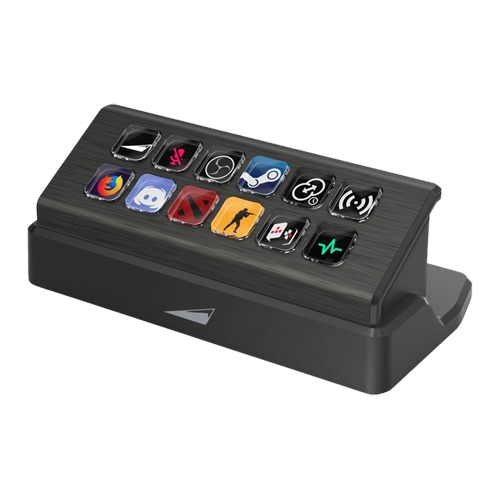
Powering each is a removeable braided USB-C cable, which is included in the box. The angle at which the DisplayPad sits makes it easy to see the various buttons, and you can optionally also include some text on the button to make it easier to distinguish.
The MacroPad has configurable per-key RGB lighting, so you can choose to either have this match your current RGB setup or even turn it off completely.
It also comes with Mountain’s own Tactile 55 mechanical key switches, but you can use the included removal tool to install any other 3-pin or 5-pin Cherry MX-style switch. This is a great feature to have, as it makes the MacroPad even more customizable, rather than being stuck with the factory defaults.
The DisplayPad features twelve miniature screens that can be configured to display static or even animated images, and then assigned any action you desire. The individual buttons are bright, and text appears quite crisp, though the actual buttons feel a little stiffer than the ones on the Elgato StreamDeck.
Setup and Performance
The brains behind both the DisplayPad and the MacroPad is Mountain’s Base Camp software, which lets you update firmware as well as configure each pad’s settings.
For the DisplayPad, the software will let you select a button and assign it a function and relevant icon, with optional text. The list of functions is fairly long – everything from simple OS commands such as shutdown or open Task Manager to direct keyboard shortcuts for programs such as Adobe Premiere Pro. Simply select a button, choose the function, and it’s directly assigned.
The same applies to the MacroPad, though of course there’s no individual image to assign to the button. Here, you’ll have to remember what button is assigned to what task, or simply pull up Base Camp to get a quick refresher. The software also allows you to quicky record a macro that captures keyboard and mouse commands, and then assign the macro to a button. While the software is very easy to use, we found that it could be a bit slow at times when assigning functions or switching to different panels. There were other times where macros weren’t being saved properly after being recorded or renamed because there wasn’t a clear ‘save’ button.
The DisplayPad is easy to compare to the Elgato StreamDeck, but the two are in very different worlds. Because the DisplayPad is a first-gen product, the actual integration into a streaming setup is very basic. While the DisplayPad can interface with OBS to change scenes and trigger various actions, it doesn’t work with Streamlabs OBS or Twitch Studio, which are also popular streaming software. This is of course just down to future software updates, but it would have been a huge win if Mountain was able to include this as well for the launch of the DisplayPad.
Another small gripe with the DisplayPad is that the buttons don’t have ‘states’ to reflect which streaming scene you’ve just activated. If you press a button on the DisplayPad, it looks the same as before you pressed it, while on the StreamDeck the button changes its image to indicate that it was the last button pressed, or to give you a quick visual cue to which scene you’re on in OBS without having to actually look at your streaming software. There’s also no integration yet with other brands to control other streaming essentials such as your lighting (other than just launching a separate control program), or to play sound effects.
While Base Camp does include integration for a few Adobe programs and DaVinci Resolve, it’s probably more efficient to just record quick macros for the keyboard shortcuts that you actually use, and then assign these instead. There is, however, native Twitch integration once you’ve signed in with your Twitch account. This means that you can assign any button on the DisplayPad to trigger certain Twitch functions, such as emote-only chat, playing an ad, or quickly create a clip.
Outside of streaming, the DisplayPad and MacroPad are useful for assigned quick keyboard shortcuts or for streamlining workflows that can get repetitive. Want to quickly resize and crop an image over and over again? You can easily record it as a macro and assign it to a button, or simply automate complicated keystrokes in other programs with ease.
- Well designed
- Flexible configurations
- Native Twitch integration
- Limited to OBS integration only
- DisplayPad buttons feel a bit cheap
The Mountain DisplayPad and MacroPad are versatile desktop tools for any streamer or designer that needs their top commands just a button press away.